Note: This article was originally published in 2015. Some steps, commands, or software versions may have changed. Check the current Windows documentation for the latest information.
In this step-by-step guide, you’ll learn change your activation product key in windows 8, windows 2012 server and multipoint server 2012.
Prerequisites
Before you begin, make sure you have:
- Windows Server installed
- Administrator access
- Remote Desktop or direct console access
How to: Change your activation product key in Windows 8, Windows 2012 Server and MultiPoint Server 2012
When you try to activate your Windows 8, Windows 2012 Server or MultiPoint Server 2012 sometimes you have a pre-set key (trial, etc.) which won’t let you activate your windows installation. There are other scenarios where you might want to change your product key (licensing, feature set, etc.) but unfortunately you can’t even though the system is throwing you errors that it can’t activate, etc. If you go to the System item in the Control Panel as before, you’ll see the “Change product key ” link is not there anymore.
Fortunately there are other ways to get that Windows Activation // Enter a product key to activate Windows dialog box. Below are the two methods published by Microsoft on how to do this:
Method 1
- Swipe in from the right edge of the screen, and then tap Search. Or, if you are using a mouse, point to the lower-right corner of the screen, and then click Search.
- In the search box, type Slui 3. (http://kx.cloudingenium.com/wp-content/uploads/sites/3/2015/10/2917616.png)](http://kx.cloudingenium.com/wp-content/uploads/sites/3/2015/10/2917616.png)
- Tap or click the Slui 3 icon.
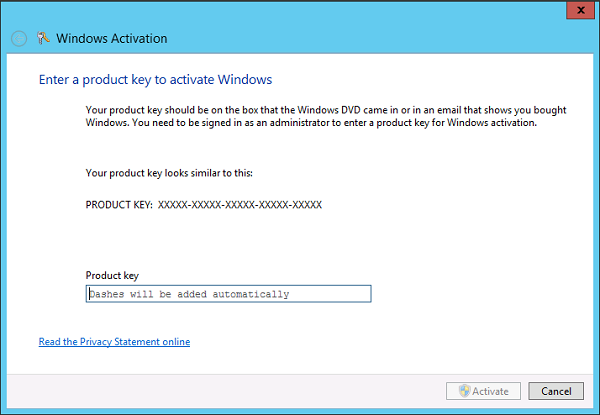
- Type your product key in the Windows Activation window, and then click Activate. (http://kx.cloudingenium.com/wp-content/uploads/sites/3/2015/10/2917617.png)](http://kx.cloudingenium.com/wp-content/uploads/sites/3/2015/10/2917617.png)

Method 2
- Swipe in from the right edge of the screen, and then tap Search. Or, if you are using a mouse, point to the lower-right corner of the screen, and then click Search.
- Type Command Prompt in the Search box. (http://kx.cloudingenium.com/wp-content/uploads/sites/3/2015/10/2917618.png)](http://kx.cloudingenium.com/wp-content/uploads/sites/3/2015/10/2917618.png)
- Right-click Command Prompt , and then click Run as administrator. If you are prompted for an administrator password or for a confirmation, type the password, or click Allow. (http://kx.cloudingenium.com/wp-content/uploads/sites/3/2015/10/2917619.png)](http://kx.cloudingenium.com/wp-content/uploads/sites/3/2015/10/2917619.png)
- Run the following command at the elevated command prompt:


slmgr.vbs /ipk
Note You can also use the Volume Activation Management Tool (VAMT) 3.0 to change the product key remotely, or if you want to change the product key on multiple computers.
Summary
You’ve successfully learned change your activation product key in windows 8, windows 2012 server and multipoint server 2012. If you run into any issues, double-check the prerequisites and ensure your Windows environment is properly configured.
Related Articles
- How to: Resolve Windows error 0x8004FE33 indicating client activation failure
- [How to: ](/change-product-key-windows-8-windows-server-2012/)
- [](/communication-with-the-underlying-transaction-manager-has-failed/)
- How to: Configure your Domain Server to sync the time over the Internet (Network Time Protocol - NTP)