Note: This article was originally published in 2012. Some steps, commands, or software versions may have changed. Check the current Microsoft documentation for the latest information.
Prerequisites
Before you begin, make sure you have:
- Forefront TMG 2010 installed
- TMG Management Console access
- Understanding of firewall and proxy concepts
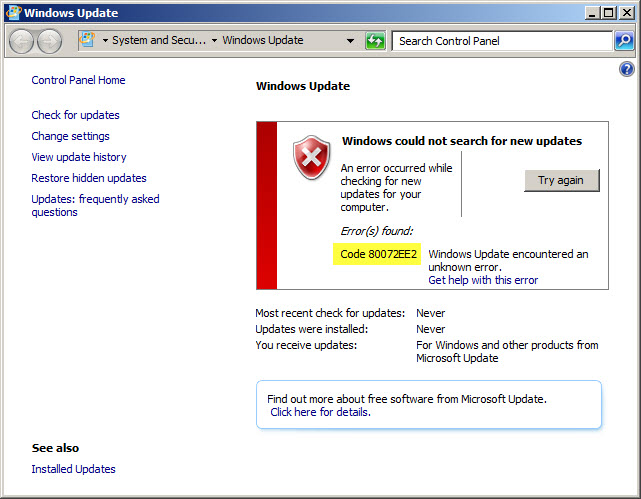
After installing TMG server on a computer I ran into the issue that it could not retrieve updates from either the Internet or the corporate WSUS. I got different error codes (80072EE2) for each of the scenarios but the result was the same. (http://kx.cloudingenium.com/wp-content/uploads/sites/3/2012/02/windows_update_01.jpg)](http://richardhicks.files.wordpress.com/2010/08/windows_update_01.jpg) After looking into the logs I found out the reason for those two behaviors: First the communication to the WSUS server was blocked and then for the Windows Update Service over the internet I needed to use the proxy server for those communications to work. In order to configure the http proxy you can either use Internet Explorer and set it up there (but then IE will use the proxy as well) or you can use the netsh command to setup the http proxy as follows (don´t forget to run using elevated credentials):

netsh winhttp set proxy localhost:8080
(http://richardhicks.files.wordpress.com/2010/08/windows_update_03.jpg?w=600)](http://richardhicks.files.wordpress.com/2010/08/windows_update_03.jpg) As mentioned above all http traffic will now travel through the proxy. For certain services you don´t want the traffic to use the proxy (perhaps some internal services on your network) set the proxy bypass list. You can learn more about that and other features using the help: nets winhttp set proxy ? Below is what I ended up doing to set this up in my case: C:Windowssystem32>netsh winhttp set proxy ? Usage: set proxy


Create a
(http://blogs.technet.com/b/isablog/archive/2009/11/28/using-windows-server-update-service-for-the-tmg-update-center.aspx “Using Windows Server Update Service for the TMG Update Center”)
Luckily, creating a rule that allows this communication is simple. You do it by performing the following steps. Create the access rule.
-
- In the TMG management console left pane:
- a. right-click Firewall Policy
- b. select New , then Access Rule
-
- in the Welcome to the New Access Rule Wizard page,
- a. enter WSUS from TMG
- b. click Next
-
- in the Rule Action page
- a. select Allow
- b. click Next
-
- in the Protocols page, click Add
-
- in the Add Protocols page, click New , then Protocol
-
- in the Welcome to the New Protocol Definition Wizard , enter WSUS Client and click Next
-
- in the Primary Connections Information page, click New
-
- in the New/Edit Protocol Connection page:
- a. select TCP in the Protocol type: drop-down
- b. select Outbound in the Direction: drop-down
- c. enter 8530 in the Port Range From: and To: boxes
Figure 4 Custom protocol details
- d. click OK to close the New/Edit Protocol Connection page
-
- in the Primary Connections Information page, verify that the summary agrees with the data in 8.a through 8.c and click Next
-
- in the Secondary Connections Information page, leave the defaults and click Next
-
- in the Completing the New Protocol Definition Wizard page, verify that the summary agrees with the figure below and click Finish
Figure 5 Protocol summary
-
- in the Add Protocols page
- a. expand User-Defined
- b. select WSUS Client
- c. click OK , then Close
-
- in the Protocols page, click Next
-
- In the Access Rule Sources page, click Add
-
- In the Add Network Entities page
- a. Expand Networks
- b. Select Local Host
- c. click Add , then Close
-
- In the Access Rule Sources page, click Next
-
- In the Access Rule Destinations page, click Add
-
- In the Add Network Entities page, Click New , then Computer
-
- In the New Computer Rule Element page
- a. Enter WSUS Server in the Name field
- b. In the Computer IP address: field, enter the IP address of your WSUS server
Figure 6 WSUS server IP address
- c. click OK
-
- In the Add Network Entities page
- a. expand Computers
- b. select WSUS Server
- c. click Add , then Close
-
- In the Access Rule Destinations page, click Next
-
- In the User Sets page, click Next
-
- In the Completing the New Access Rule Wizard page, click Finish
-
- When prompted in the center pane, click Apply to save the changes
-
- In the Configuration Change Description page
- a. enter any comments that you like
- b. click Apply again
-
- In the Saving Configuration Changes page, click OK
Figure 7 Custom WSUS policy
Summary
You’ve successfully learned configure tmg server to allow for windows update (internet & corporate wsus) - 80072ee2. If you run into any issues, double-check the prerequisites and ensure your Microsoft environment is properly configured.
Related Articles
- How to: Configure and understand AutoDiscover with TMG
- How to: Configure Exchange Edge server for E-mail policy with Thread Management Gateway (TMG)
- How to: Configure SQL Server for Microsoft Threat Management Gateway (TMG) logging
- How to: Resolve common problems with HTTPS Inspection using Microsoft Forefront Threat Management Gateway 2010